When Google Play says an app is not available for your device, it does not always mean your phone is too old. Compatibility can depend on Android version, required hardware, screen characteristics, device certification, country availability, developer exclusions and other targeting rules.
Google Play Help states that developers determine app compatibility. The store applies those declarations and distribution settings to the devices associated with your account.
Android version is only one filter
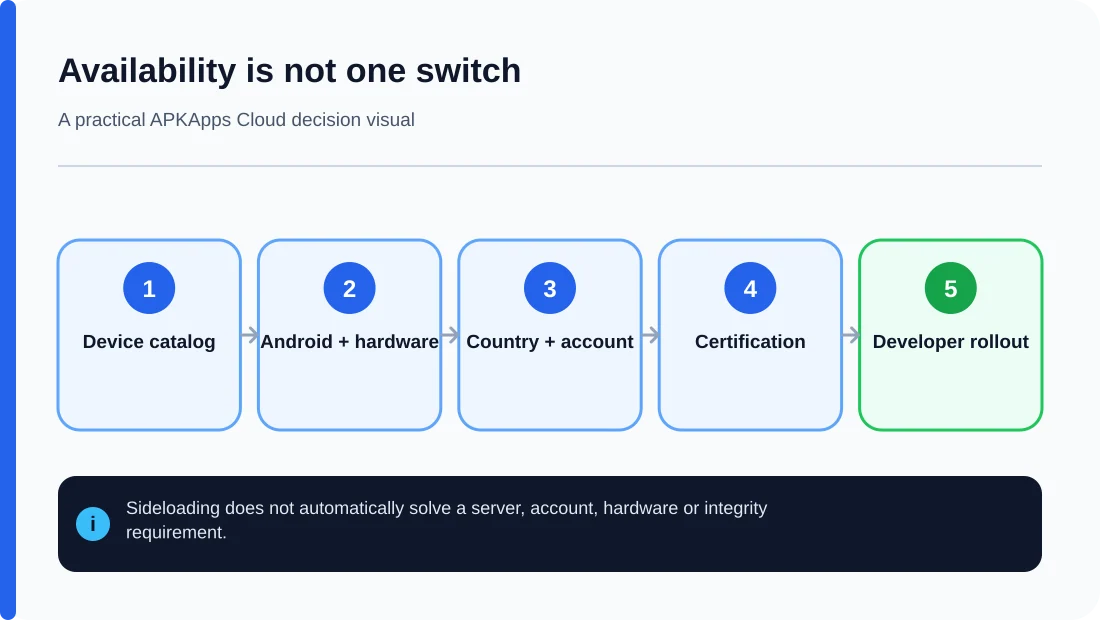
Apps declare a minimum Android API level. If your device runs an older release, Google Play can prevent installation. But even a phone on a current Android version may be excluded if the app requires hardware or software features the device does not report.
Updating Android can help only when the incompatibility is actually tied to platform version. It will not add missing NFC hardware, a required sensor, telephony capability or other physical feature.
The developer can target or exclude devices
Google Play’s device catalog lets developers manage which device models and variants can receive an app. Manifest declarations can require features, while Play Console rules can exclude models or groups of devices. As a result, two phones that look similar to a buyer can have different eligibility.
Compatibility may also change between releases. A newer app version can raise the minimum Android requirement, add a hardware dependency or drop support for older configurations.
Country and account settings can change what you see
An app may be available only in selected countries or regions. Google Play also uses the country associated with your Play profile. If an app is not offered in that market, it may not appear in search or may show as unavailable even though the hardware itself could run it.
Parental controls, managed work accounts and organization policies can also affect visibility. Those are policy or account restrictions rather than hardware compatibility.
Play Protect certification can matter
Google maintains certification requirements for devices that ship with Google apps and services. Uncertified devices can have problems with Google Play features, updates or app availability. Turning off Play Protect scanning is not a fix for a certification problem; certification and malware scanning are separate concepts.
Why sideloading is not proof of support
You may find an APK elsewhere even when Play marks the device incompatible. Installing it manually can bypass store distribution rules, but it does not change the app’s actual requirements. The app may crash, lack important features, fail to receive updates or behave unpredictably.
If the incompatibility is caused by a missing hardware feature or unsupported Android API, forcing the package onto the device does not create that capability. Treat sideloading as a separate trust and compatibility decision, not as a guaranteed fix.
What to check before looking for another package
- Open the Play listing from a browser and check the required Android version if shown.
- Confirm your exact device model and Android version in Settings.
- Check whether the app is available in your Play country.
- Review whether the app depends on hardware such as NFC, telephony, a specific sensor or a larger-screen class.
- Check Play Protect certification status if the device has unusual firmware or was imported.
- If the listing still excludes the device, contact the developer for the reason rather than assuming a random APK variant is safe.
When the problem appeared after an update
If an app used to be available but is not anymore, the developer may have changed requirements or distribution. Do not immediately uninstall the working copy. First export important data and decide whether you need to keep the installed version temporarily. Once removed, an older compatible build may be difficult or impossible to restore through the store.
Sources and further reading
Google Play Help: App compatibility with Android devices
Google Play Help: Can’t find an app
Play Console Help: Compatible devices and targeting
Google Play Help: Play Protect certification
Related APKApps Cloud guides
Use our compatibility checklist before trying another package, and read the “App not installed” guide if a manual package is rejected.