When Android notifications stop working, the master notification switch is only one part of the system. An app can be allowed to send notifications while a specific notification category is disabled, background work is restricted, the app has been force-stopped, an in-app reminder is turned off, or the manufacturer applies additional battery controls.
The fastest way to diagnose the problem is to separate notification display from the app’s ability to run the work that creates the notification.
1. Check the app’s notification permission and categories
Open Settings > Notifications > App notifications, or Settings > Apps > the app > Notifications. Confirm that notifications are allowed. If the app exposes categories, inspect the category that matches the missing alert. A messaging app can have one category enabled while another is silent or disabled.
Also check whether the category is set to Silent. The notification may be arriving without sound or a pop-up, which can look like a complete failure if you only notice alerts by sound.
2. Check the app’s own reminder settings
Android can allow notifications while the app itself has reminders, sync or alert types turned off. Open the app and verify the feature that should generate the notification. For calendar and task apps, confirm the specific event has a reminder time and that the app is using the correct account.
3. Review background battery restrictions
Android can place apps in optimized or restricted background states. Android Developers notes that a restricted app may be prevented from running background work as expected. If a reminder depends on scheduled work or sync, aggressive background restriction can delay or prevent it.
Do not set every app to unrestricted. Use that setting only as a diagnostic step for an app that genuinely needs reliable background work, and watch battery use afterward.
4. Check whether the app was force-stopped
Force stop is stronger than swiping an app away from the recent-apps screen. A force-stopped app can remain inactive until the user explicitly launches it again. If notifications disappeared immediately after you used Force stop, reopen the app before changing unrelated permissions.
5. Check unused-app and archiving behavior
Android can pause activity for apps you have not used for a while, and archived apps stop notifications while the app software is removed. If the icon is dimmed or the app has been archived, restore it before troubleshooting notification settings.
6. Check Do Not Disturb and lock-screen settings
A notification can exist but be hidden from the lock screen, minimized or silenced by Do Not Disturb. Use notification history on devices that support it to see whether the alert arrived and was dismissed or suppressed.
7. Consider manufacturer-specific battery controls
Some manufacturers add their own auto-start, sleep, deep-sleep or background-management controls. Only change these after the standard Android settings are correct. Do not follow generic advice to disable all battery optimization across the phone; that can increase battery drain without solving the actual app-specific issue.
Diagnostic table
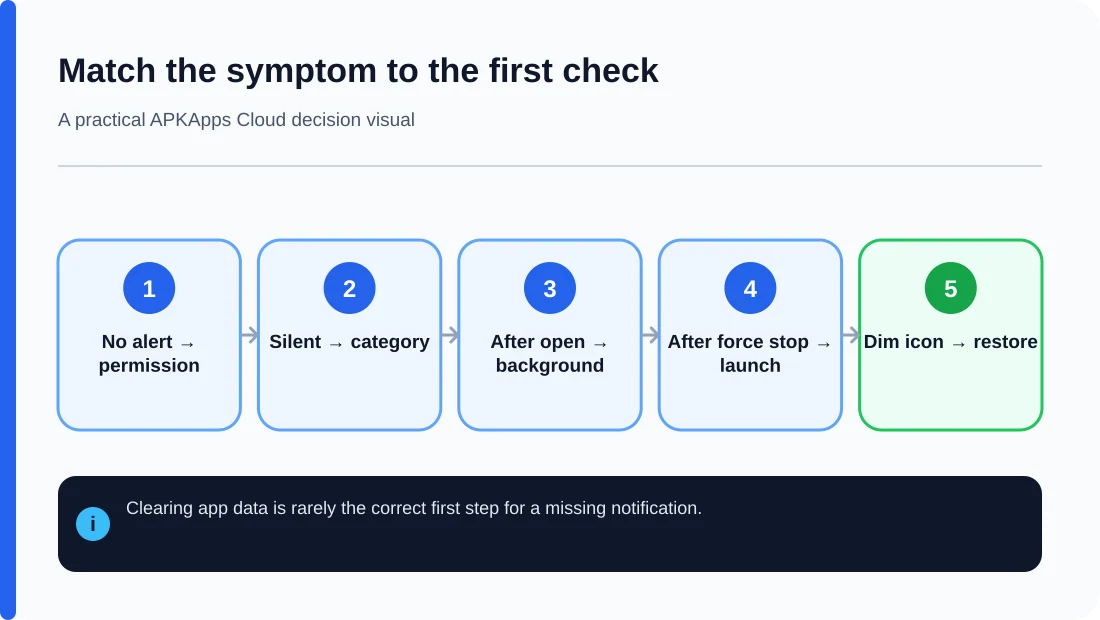
| Symptom | Likely area | Safe first check |
|---|---|---|
| No notification at all | App permission/category | Settings > Apps > Notifications |
| Alert appears only after opening app | Background restriction or sync | Battery/background setting and app sync |
| Notification arrives silently | Category importance/sound | Notification category settings |
| Everything stopped after Force stop | App stopped state | Launch app once |
| Dimmed app icon | Archived app | Restore the app |
Do not clear app data first
Clearing storage can remove local settings, authentication state and unsynced data. Notification problems are often caused by a switch or background state, so diagnose those first. If a developer recommends a reset, confirm backup or export before clearing data.
Run one disposable notification test
Create a temporary reminder, message or sync event due within a few minutes, then leave the app without force-stopping it. Record whether the alert appears, appears silently, or arrives only after the app is opened. That single controlled test separates display settings from background execution more reliably than changing several switches at once.
After every setting change, repeat the same disposable test. If the result changes, you have evidence about the cause; if it does not, restore the previous setting before moving to the next layer.
Sources and further reading
Android Help: Control notifications
Android Developers: Background optimization
Google Play Help: Archive unused apps
Related APKApps Cloud guides
Read Force stop vs swipe away vs battery restricted and how to review app permissions.