Android permissions are easier to evaluate when you compare each request with the app’s actual job. A camera app may reasonably need camera access; a simple calculator asking for contacts or call logs deserves a much closer look. The goal is not to deny every permission, but to grant the narrowest access that lets the feature you want work.
Modern Android also lets you change permissions later, so installation is not your only chance to make a decision.
Before installation: start with the app’s purpose
Read what the app claims to do and identify which device capabilities are essential to that function. If the app comes from Google Play, review the listing, developer identity and support information. If it is sideloaded, also verify the package source and be more cautious with sensitive settings or permissions.
Some permissions are requested only when a feature is used, so you may not see the complete set during installation. That is normal for runtime permissions.
When a permission prompt appears, read the scope
Android can offer choices such as “Allow only while using the app,” “Ask every time,” or “Don’t allow,” depending on the permission and Android version. Location may also offer approximate versus precise access. Choose the narrowest option that still supports the feature you are using.
If an app cannot explain why it needs a sensitive permission, deny it first. You can usually grant it later from Settings if a legitimate feature requires it.
Review permissions from Settings
Google’s Android Help directs users to Settings > Apps > the app > Permissions, with wording that can vary by manufacturer. You can also use the Permission manager to see which apps have access to a particular category such as camera, microphone, contacts or location.
This second view is useful because it changes the question from “What can this app access?” to “Which apps can access my microphone?” That often exposes old or forgotten permissions that no longer make sense.
Use the privacy dashboard to check actual access
On supported Android versions, the privacy dashboard shows recent access to permissions such as camera, microphone and location. This helps distinguish a permission that is merely granted from one that the app is actively using.
If an app accesses a sensitive capability at times that do not match its function, review its settings and permissions. Unexpected activity does not automatically prove malicious behavior, but it is a valid reason to investigate.
Be especially careful with restricted settings
Android can restrict some high-impact settings for apps installed from outside trusted stores. Google warns that harmful apps may try to persuade users to change settings that expose data or device control. Accessibility access is one example that can be powerful enough to observe or interact with other apps.
Do not enable a restricted setting because a tutorial says it is “required” without understanding what the app gains. For a sideloaded utility, that request should be explained by a clear feature and a trustworthy source.
What happens if you deny a permission?
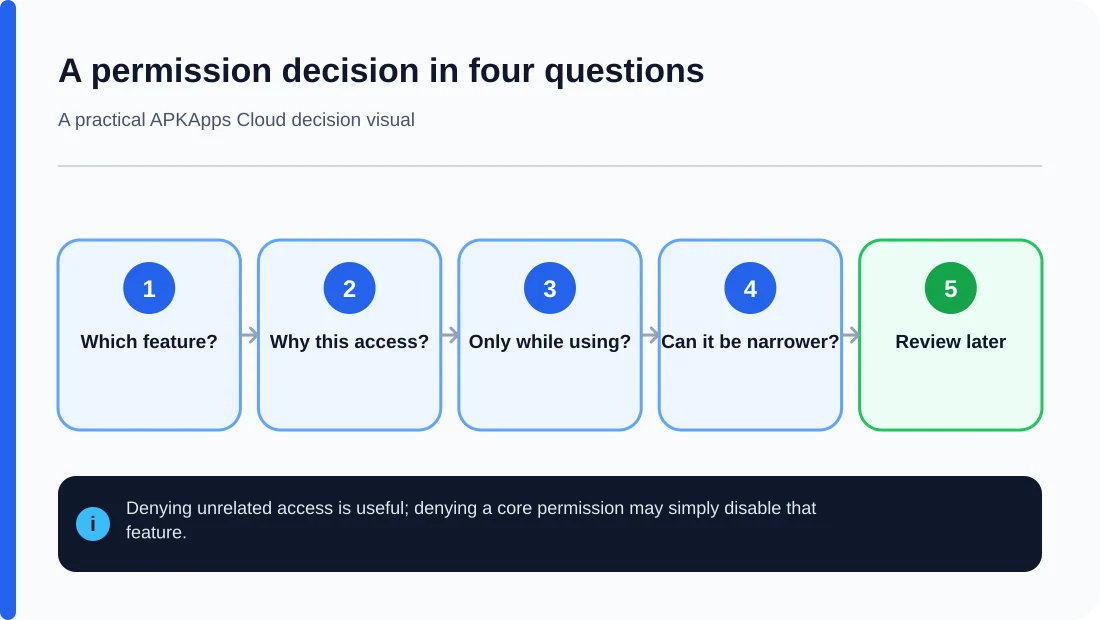
A well-designed app should degrade only the feature that needs the denied capability. A scanner cannot take a picture without camera access, but unrelated parts of the app may still work. If the whole app refuses to run unless you grant an unrelated permission, decide whether the app is worth that trade-off.
You can revisit permissions later. Android can also remove permissions from apps you have not used for a while, depending on version and device settings.
A practical permission review
| Permission | Reasonable example | Question to ask |
|---|---|---|
| Camera | Scanner, video calling | Does the app need to capture images now? |
| Microphone | Voice recorder, calling | Can the feature work without recording audio? |
| Contacts | Dialer, messaging | Is contact matching central to the feature? |
| Location | Navigation, local weather | Is approximate or while-in-use access enough? |
| Photos and videos | Editor, backup app | Can selected-item access work instead of the whole library? |
Sources and further reading
Android Help: Change app permissions
Android Help: Privacy dashboard
Android Help: Restricted settings
Related APKApps Cloud guides
Also see how Selected Photos access can expire and why allowed notifications can still fail to appear.