Backing up an Android phone does not create a perfect copy of every installed app. Android can preserve supported app data, settings and device information, but developers decide what their apps allow into backup, some directories are intentionally excluded, and large or local-only datasets may never be restored.
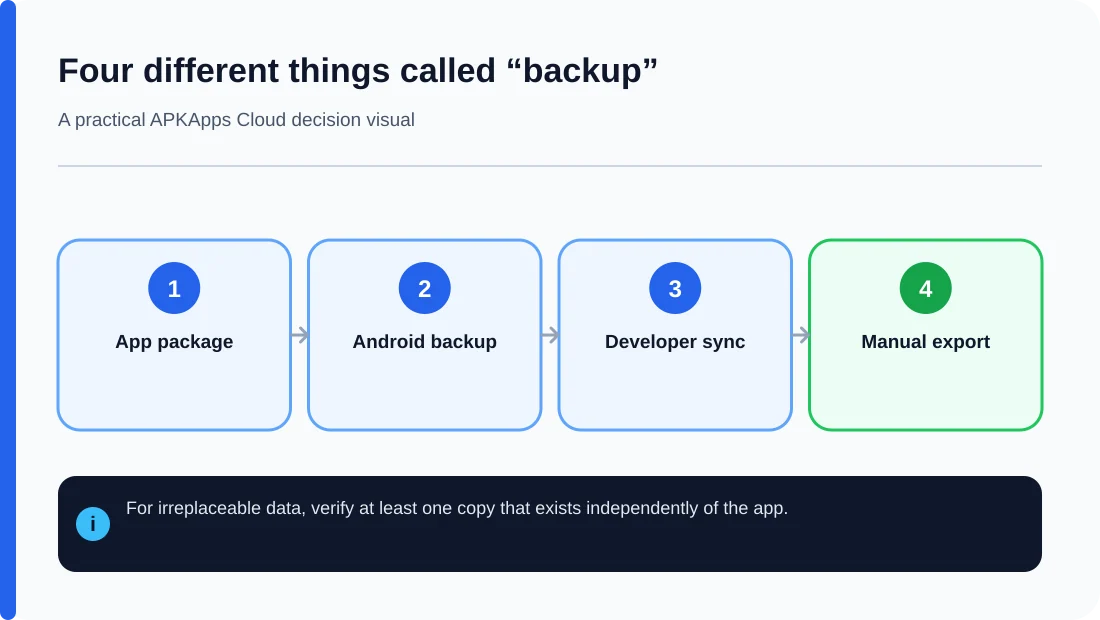
The safest approach is to separate four things in your mind: the app package, local app data, cloud-synced account data and user exports. They are related, but they are not the same backup.
What Android Auto Backup can preserve
Android Developers documents Auto Backup for apps that target and run on Android 6.0 or higher. By default, it can include shared preferences, internal files, databases and app-specific external files, unless the developer changes the backup rules.
The same documentation states that each app can allocate up to 25 MB of Auto Backup data per app user. If the eligible data exceeds that quota, the cloud backup can stop until the dataset comes back under the limit.
What is intentionally excluded
Cache directories, code cache and the no-backup directory are excluded from Auto Backup. Developers can also opt out or explicitly include and exclude files. That means two apps of similar size can have very different restore behavior.
Large offline downloads, media libraries and generated files often should not be assumed to exist in the Android backup. They may need to be downloaded again or exported separately.
Your app package is not your app data
An APK contains the application package, not a snapshot of your private database, account state or documents. Copying the APK to a computer can preserve that version of the software, but it does not preserve everything the app stored after installation.
This distinction becomes important before a factory reset or phone migration. A person can successfully reinstall the same APK and still discover that years of local data are missing.
Cloud sync is a separate layer
Some apps keep most important information on their own servers. In that case, signing back into the same account may restore messages, notes or settings independently of Android Auto Backup. Other apps store only part of their state online.
Do not assume an account equals a backup. Look for documentation or an in-app status showing what is actually synced. If the app offers a manual export, make one before major changes even when cloud sync is enabled.
How to check your phone backup
Google’s Android Help explains that users can review device backup under Settings > Google > Backup, with wording varying by device. Check that backup is enabled and review the listed data before relying on it for a reset or migration.
Remember that a completed device backup does not certify that every file inside every app is recoverable. The app developer still controls important parts of the process.
A safer backup strategy for important apps
- Confirm Android device backup is enabled.
- Open the app and check its own sync or backup status.
- Use a manual export if the app supports one.
- Copy user-accessible exported files to another device or trusted storage location.
- Record account details and two-factor recovery information.
- Only then uninstall, reset or migrate the app.
Do not test a backup by deleting the only copy
If data matters, avoid “testing” a backup by clearing storage or uninstalling the app before you have another verified copy. A safer test is to inspect the exported file, check backup details and, when possible, confirm restoration on a secondary device or supported app workflow.
Build a restore map before the reset
For every app that holds irreplaceable information, record four separate answers: where the installer will come from, whether Android backup lists the app, whether the app shows a current cloud-sync status, and where a readable manual export is stored. A green check in only one column is not proof that the complete workflow can be restored.
This restore map also exposes single points of failure. For example, a cloud-synced notebook may still depend on an email account and a two-factor recovery method, while a local vault may depend entirely on one exported file and its password.
Sources and further reading
Android Developers: Auto Backup for Apps
Android Developers: Data backup overview
Android Help: Back up or restore data
Related APKApps Cloud guides
Next read how to move apps and app data to a new phone, why copying an APK is not a backup, and why Android/data can look empty.