An app can use several gigabytes while the Android/data folder looks empty or inaccessible in a file manager. That does not mean Android has lost track of the files. Modern Android deliberately restricts ordinary access to other apps’ private and app-specific storage, and Android 11 tightened what the system file picker can expose inside Android/data and Android/obb.
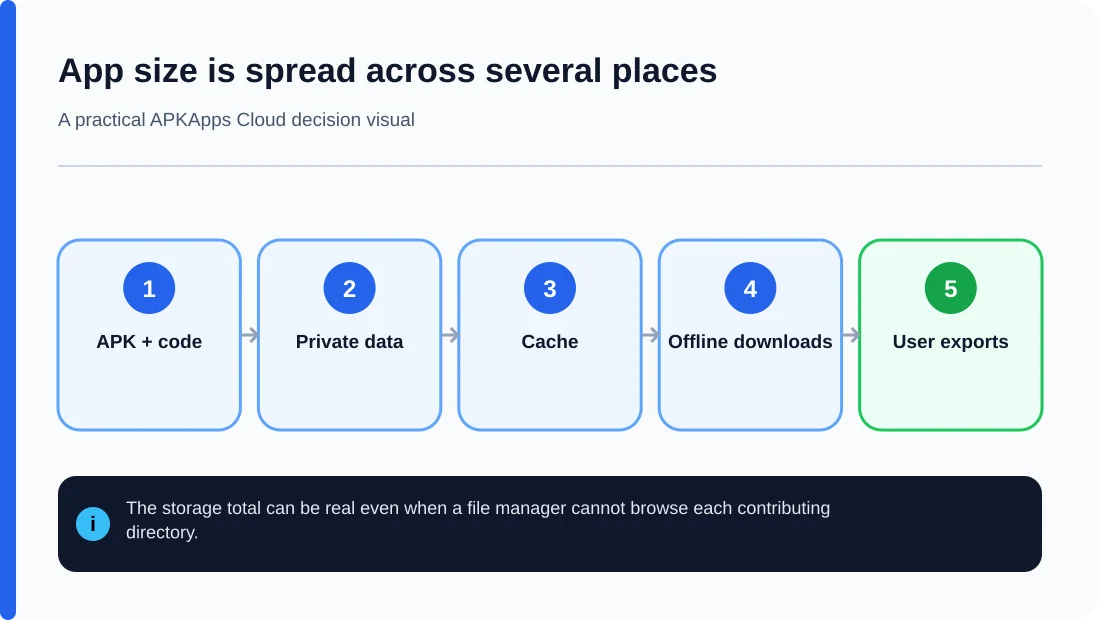
The storage number shown in Settings can also include more than one directory: the installed package, app-private files, databases, cache and app-specific external storage can all contribute.
Why the folder became harder to browse
Android’s scoped-storage model limits one app’s ability to inspect another app’s files. This reduces the chance that a random file manager or unrelated app can read or modify private application data. Android 11 specifically restricts normal Storage Access Framework selection of Android/data and Android/obb.
As a result, a file manager may show an empty directory, deny access or expose only files it is legitimately allowed to see.
App storage is larger than one visible folder
When Settings reports that an app uses 2 GB, that total can include the APK or split APKs, internal databases, private files, cache, downloaded media and app-specific external files. Not all of those locations are directly browseable by another app.
This is why comparing the number in Settings with the visible contents of one folder often produces an apparent mismatch.
Cache can account for a large share
Streaming, social, map and browser apps can build large caches over time. Android may let you clear that cache from the app’s Storage page even though you cannot browse every cached file individually.
Clearing cache is generally less destructive than clearing storage, but expect some media or thumbnails to be downloaded again. Do not use “Clear storage” merely because a folder looks empty; that can erase the app’s persistent local state.
Offline downloads may be app-managed
Music, maps, videos and documents saved for offline use can live in app-specific storage. The app may intentionally manage those files rather than exposing them as normal downloads. Removing the app or clearing its storage can therefore remove offline content even if you never saw the files in a file manager.
Use the app’s own storage or download-management screen when available. It knows which files can be safely removed and can update its database at the same time.
Why bypass-style file managers deserve caution
Some tools request broad or unusual privileges in an attempt to expose restricted folders. Granting powerful access to an unknown file manager can weaken the privacy boundary scoped storage was designed to provide. Do not grant Accessibility, root-like control or unrelated permissions simply to make a protected directory visible.
If the goal is backup or migration, the app’s export feature, Android backup or a developer-supported transfer method is usually safer than manually copying internal directories.
What you can check safely
| Question | Where to check | What it tells you |
|---|---|---|
| How much space does the app use? | Settings > Apps > app > Storage | Total app, data and cache breakdown where supported |
| Can cache be removed? | App storage settings | Temporary data that can usually be rebuilt |
| Are offline files managed by the app? | Downloads/storage screen inside the app | Content the app can remove cleanly |
| Can important data be exported? | App settings or documented backup tools | Safer route for migration than copying private folders |
Do not confuse inaccessible with nonexistent
Restricted visibility is a permissions issue, not proof that the directory contains nothing. The app itself can still access its own allowed storage. Android’s Settings can account for storage even when another app is not permitted to enumerate the same files.
If storage keeps growing unexpectedly, first use the app’s built-in cleanup controls and Android’s cache information. If the app offers no explanation, contact the developer before deleting private data you may later need.
Sources and further reading
Android Developers: Android 11 storage changes
Android Developers: Data and file storage overview
Related APKApps Cloud guides
Read App cache vs app data, what Android backup may leave out, and why copying an APK is not a backup.