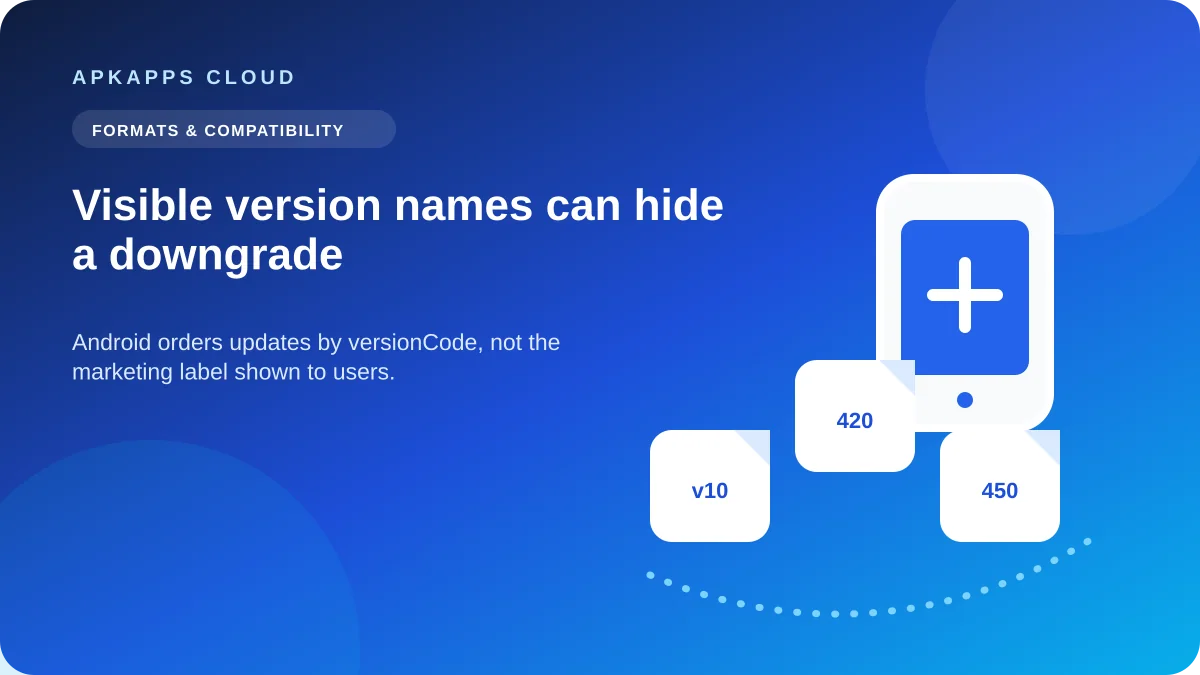
An APK labelled “v10” can still be treated as older than an installed app labelled “9.8” because Android does not use the visible version name to decide upgrade order. It uses an internal integer called versionCode. The developer-facing version code and the user-facing versionName serve different purposes.
This distinction explains many confusing sideloading errors. A larger-looking marketing version does not prove that Android will accept the package as an update.

versionName is for people
The version name is the label users see in an app’s settings, store listing or release notes. Developers can format it in many ways: 2.4, 10.0-beta, 2026.09, or another scheme. Android does not require the visible name to increase according to normal decimal rules.
That flexibility is useful for product communication, but it makes the visible label unreliable for update comparison.
versionCode is for Android’s update order
Android Developers defines versionCode as a positive integer used internally to indicate one version relative to another. Each successive release intended as an upgrade should use a higher value. Android prevents installation of an APK with a lower version code over an installed app with a higher one under ordinary update rules.
The number may be completely hidden from a normal user interface. That is why two files can look newer or older by name while Android reaches the opposite conclusion.
A simple example
| Package | Visible versionName | Internal versionCode | Android sees it as |
|---|---|---|---|
| Installed build | 9.8 | 450 | Current |
| Downloaded build | 10.0 | 420 | Older / downgrade |
| Later valid build | 10.0.1 | 451 | Newer / upgrade |
The numbers above are illustrative, but they show why the marketing label alone cannot establish upgrade order.
Why developers use non-obvious version codes
Version codes may encode release channels, build numbers or internal release sequences. Developers can keep a simple human-readable version name while using a much larger integer internally to guarantee monotonic upgrades.
App bundles add another wrinkle: Google Play can generate device-specific APKs from one release while preserving the versioning rules needed for distribution. The individual files you see may therefore have names that tell you less than you expect.
How downgrade confusion appears to users
A manual update can fail with a generic installation message rather than explicitly saying “your versionCode is lower.” People then try clearing cache, changing permissions or uninstalling the current app. None of those steps changes the downloaded package’s version code.
If the installed app contains local data, do not uninstall simply to test a file that may be an older build. First verify the package source and release information.
Signature and version are separate checks
A higher version code does not guarantee that an APK can update the installed app. The signing identity must also be acceptable. Conversely, a correctly signed APK can still be rejected when its version code moves backward.
Troubleshooting therefore needs both questions: “Is this package signed as a valid update?” and “Does Android consider its version newer?”
What if you intentionally need an older version?
Rolling back can be more complicated than installing a newer build. Older app versions may not understand databases already upgraded by newer versions, and a clean install can delete local data. If rollback is necessary for compatibility, export or back up data first and follow the developer’s supported procedure where one exists.
Do not use a downgrade as a casual fix for crashes without knowing whether the app’s local data format changed.
How to avoid misleading version checks
- Use the same trusted distribution source for updates when possible.
- Do not judge update order from the filename or versionName alone.
- If an update fails, check signing identity and version information before uninstalling.
- Preserve app data before any clean-install or rollback plan.
- For split packages, make sure every component belongs to the same release.
Record the update evidence before a rollback
Before removing a newer build, note the installed version name, the download source, the target file’s stated release, and whether the app contains unsynced local data. If a trusted tool or developer page exposes version codes, record those too. This gives you a decision trail instead of relying on filenames that may be renamed or incomplete.
A rollback is a data-compatibility decision as well as an installation decision. Even when Android permits an older package after a clean install, that build may not understand a database already upgraded by the newer release.
Sources and further reading
Android Developers: Version your app
Android Developers: App signing
Related APKApps Cloud guides
See the signature mismatch problem, safe sideloaded updates, and the ordered install-error checklist.