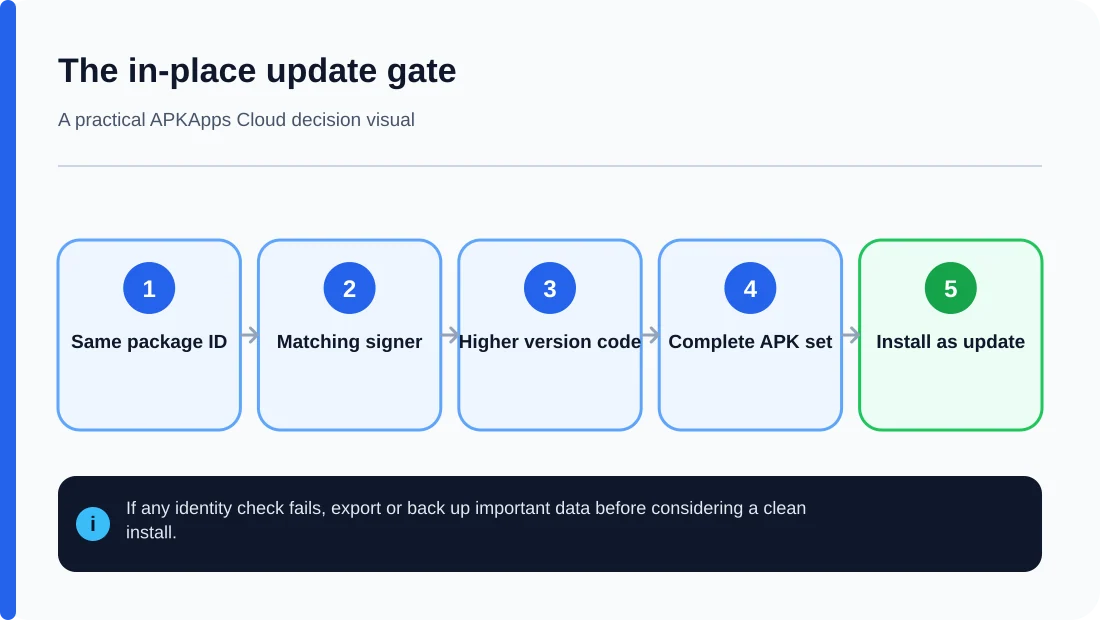
The safest way to update a sideloaded Android app is to install a newer package over the existing copy without uninstalling it first. That works only when Android recognizes the replacement as a valid update: the package identity must match, the signing relationship must be acceptable, the version code must move in the right direction, and the new build must still support your device.
If any of those checks fail, do not treat uninstall-and-reinstall as a routine fix. Uninstalling can remove local data that the app never synced or exported.
Start by protecting the data, not by replacing the app
Open the app and identify where its important information lives. Look for account sync, cloud backup, local export, database export, file export or a documented migration feature. These are different mechanisms. A login account does not automatically mean every local setting or file is stored in the cloud.
If the app lets you export to a normal user-accessible folder, make a current export before updating. For critical data, confirm the exported file can be opened or recognized instead of assuming the export succeeded.
Use the same trusted distribution path when possible
Android’s update model relies heavily on app signing. A package from a different source can look identical while being signed with a different certificate. In that case Android may reject it as an update. Obtaining updates from the same developer or store that supplied the installed copy reduces this risk.
If an update source tells you to uninstall the existing app because of a signature error, that is a warning that you are changing signing identity, not a harmless installation detail.
Check the version code, not just the visible version name
Android uses the internal versionCode to determine upgrade and downgrade order. The visible versionName is only a user-facing label. A package labelled “10.0” can still be rejected if its internal version code is lower than the installed build.
Downgrade attempts are especially risky when people respond by deleting the current app. If you need an older version for compatibility reasons, first export or back up data and understand that old builds may not be able to read databases created by newer builds.
Watch for split-package updates
If the app is distributed as multiple APKs, all required splits need to match the base package. Do not mix a base APK from one release with language, architecture or feature splits from another. Google Play handles this automatically; manual sideloading does not.
If you are working with an APKS or another split archive, use the complete package set intended for your device. A partial install can fail even though each file looks valid by itself.
Install over the existing app
Once the package source, signing continuity, version and compatibility are checked, open the replacement package and allow Android to perform the update. If the update succeeds in place, the app’s private data normally remains associated with the same installed package.
Afterward, open the app and verify the data that matters: local documents, offline downloads, settings, signed-in state, integrations and background permissions. Some apps migrate their internal database on first launch, so give that process time to finish before force-stopping the app.
If Android refuses the update
Record the exact error and stop changing unrelated settings. A signing mismatch, downgrade, insufficient storage or missing split package requires a different fix. Clearing cache rarely solves identity or signing problems. Clearing storage is more destructive and should not be used as a generic installation step.
If no compatible update exists from the same signing lineage, your real choice may be to keep the working version temporarily, export data and then move to a clean install. That is a migration decision, not an update trick.
Sources and further reading
Android Developers: Sign your app
Android Developers: Version your app
Android Developers: Android App Bundles
Related APKApps Cloud guides
See why signature mismatch blocks updates, how version codes control downgrade checks, and what Android app backup may leave behind.