An APK can look like the same app and still be rejected as an update because Android does not identify updates by icon or display name alone. Apps must be digitally signed, and the signing identity is part of Android’s update trust model. If the replacement package is not signed in a way Android accepts for the installed app, the update fails.
This is a security feature, not a random installer bug. It helps prevent an unrelated party from replacing an installed app with a package that merely copies its name or package identifier.
What Android checks during an update
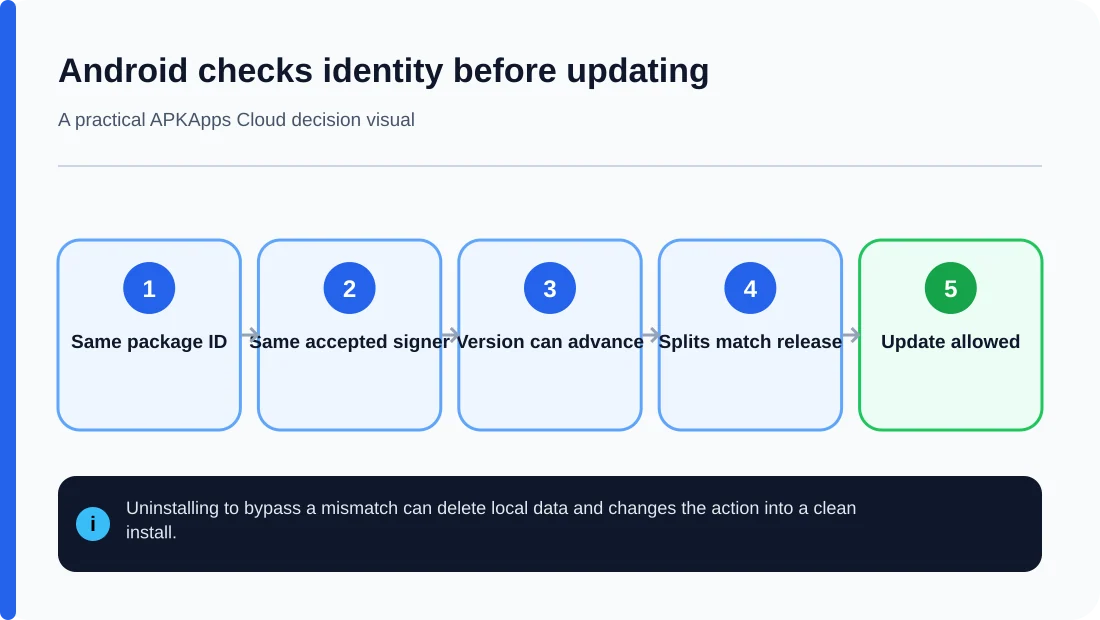
A valid update needs more than a matching filename. The installed application and replacement must represent the same package identity, the signing relationship must be valid, the version must be acceptable, and the new package must remain compatible with the device.
The user-facing app name can change between releases, and two unrelated apps can even use very similar names. The signing key provides a cryptographic identity that is much harder to imitate.
Why switching download sources can trigger the problem
A common signature mismatch occurs when the installed copy came from one distribution source and the update came from another source that repackaged or re-signed the APK. Both may use the same application identifier and visual branding, but the signatures differ.
The safest update path is usually the same trusted developer or store that supplied the installed version. If a source says you must uninstall the current app before its APK will install, find out why. That instruction may mean the source cannot produce a package that Android recognizes as a legitimate update.
Why uninstalling seems to “fix” it
After an app is uninstalled, Android no longer has the installed package’s signing identity to compare against during a fresh installation. A differently signed package may then install as a new copy. That can make it appear that uninstalling solved the error.
But the cost can be substantial: uninstalling can delete app-private databases, preferences, offline files and authentication state. A successful clean install does not restore data that was removed with the old app.
Do not clear cache or storage for a signature mismatch
Cache and app data do not control the APK’s signature. Clearing either one cannot make two unrelated signing identities match. Clearing storage only adds the risk of data loss while leaving the update problem unchanged.
Likewise, changing notification settings, battery optimization or ordinary runtime permissions will not fix a package-signing failure. Keep troubleshooting focused on package identity and source.
How signing-key upgrades fit in
Android supports controlled signing-key rotation and upgrade mechanisms, so “the certificate must always be byte-for-byte identical forever” is too simplistic. What matters is whether the platform recognizes the signing lineage or update relationship as valid. Developers using Google Play App Signing can also separate the app-signing key from the upload key used to submit releases.
For an ordinary user, the practical rule is simpler: use official update channels and do not assume an APK from another source can safely replace the installed build.
Signature mismatch or version downgrade?
| Problem | What differs | Safe first response |
|---|---|---|
| Signature mismatch | Signing identity or accepted lineage | Get the update from the same trusted distribution source |
| Version downgrade | Replacement has a lower versionCode | Find a genuinely newer compatible build |
| Missing split package | Required APK component absent | Obtain the complete set for the device |
| Device incompatibility | Android/API/hardware requirements differ | Check platform and architecture requirements |
Before considering a clean install
If you truly need to change to a differently signed distribution, treat it as a migration. Export important information from the existing app, confirm cloud sync, verify account credentials and preserve any user-accessible files. Only uninstall after you know what will and will not return.
If the existing app contains irreplaceable local data and offers no export, keeping the current working version can be safer than forcing a source change.
Sources and further reading
Android Developers: Sign your app
Google Play Console Help: Use Play App Signing
Related APKApps Cloud guides
Read how to update a sideloaded app without losing data, version name vs version code, and the full installation-error checklist.