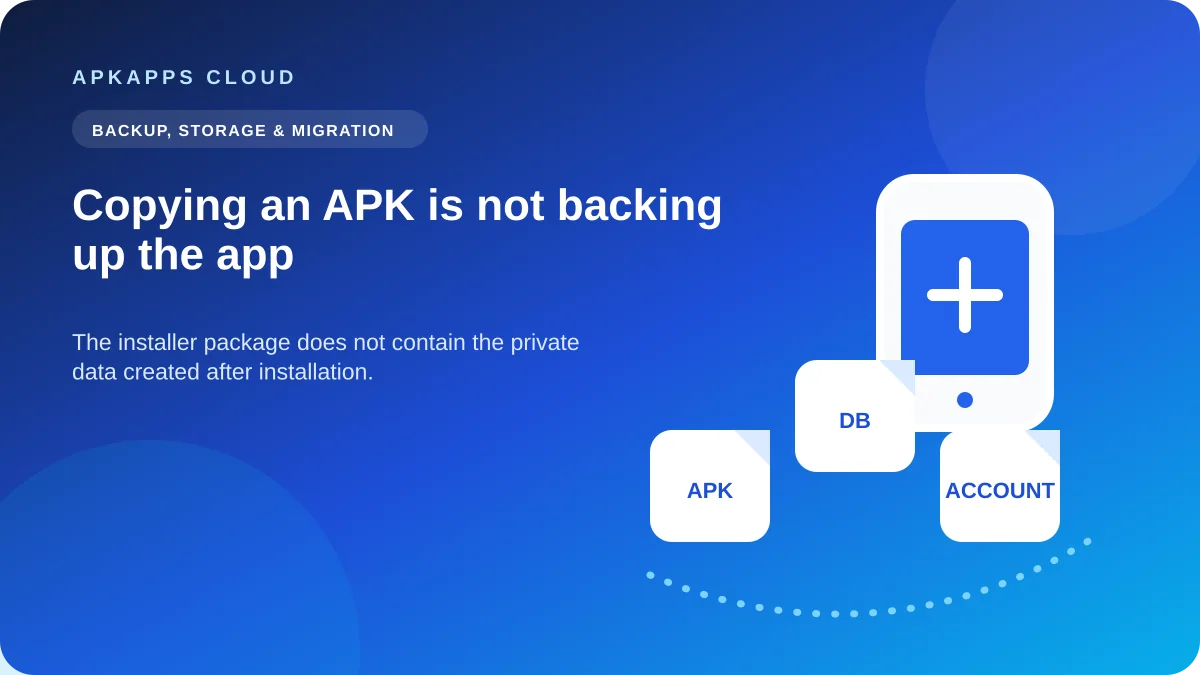
Copying an APK preserves the application package, not a complete working backup of the installed app. The APK contains code and packaged resources. The information created after installation—databases, preferences, account tokens, offline files and other private state—usually lives elsewhere.
This distinction matters most before a phone reset, uninstall or migration. You can successfully reinstall the exact same APK later and still find that the app opens empty because its data was never backed up.
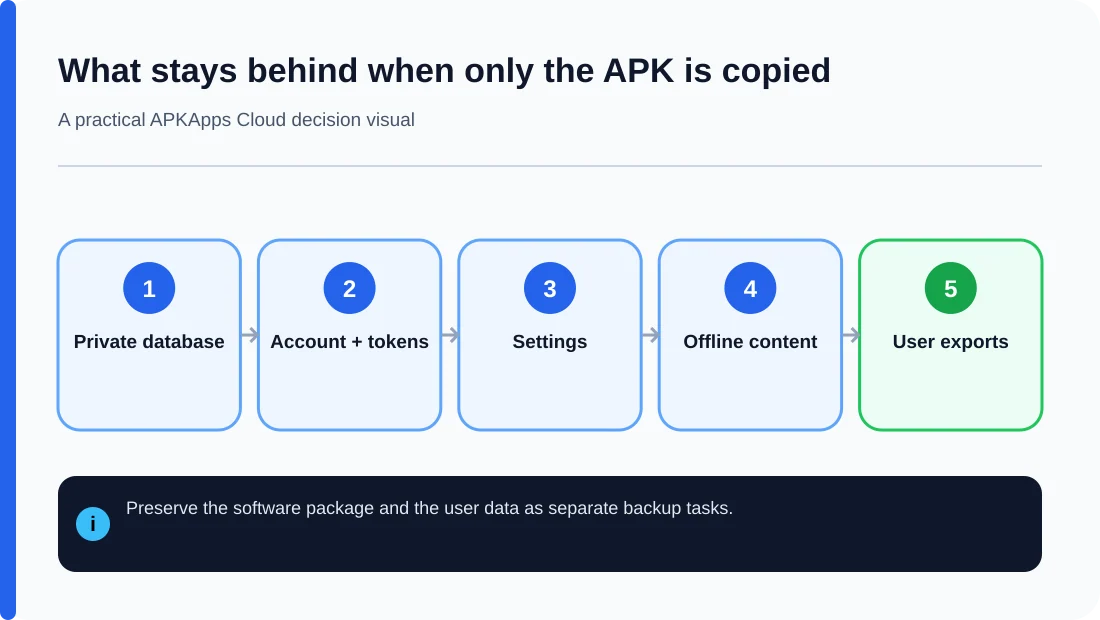
Think of the package and the data as separate layers
The APK is the software package Android installs. After installation, the app can create files and databases in private storage, download additional content, save preferences, authenticate an account and sync information to a server. None of those later changes are automatically written back into the original APK.
Extracting the installed APK therefore gives you a copy of the software version, not a snapshot of the app’s current state.
What an APK copy can preserve
An APK copy can be useful when you need to retain a particular installer version for legitimate compatibility or archival reasons. If the package is complete, compatible and correctly signed, it can reinstall that software build later.
It does not guarantee that installation will remain possible forever. A future Android release can change compatibility requirements, a split package may need additional APKs, or a device architecture may differ from the phone the package came from.
What normally stays behind
| Item | Usually inside the APK? | Where it may live instead |
|---|---|---|
| App code and packaged resources | Yes | APK or coordinated split APKs |
| Local database | No | App-private storage |
| Preferences and settings | No | Private app data |
| Login/session tokens | No | Private storage and account services |
| Cloud records | No | Developer’s servers |
| Offline downloads | No | Private or app-specific storage |
| User exports | No | User-selected folder, cloud drive or another destination |
Android backup is another separate mechanism
Android can back up eligible app data, but developers control important backup rules and the platform does not promise to save every file. Auto Backup documentation describes a per-app-user quota of up to 25 MB for file-based backup and excludes locations such as cache and the no-backup directory.
So even a working Android device backup should not be confused with a byte-for-byte copy of the installed app. For valuable information, an app’s own export or sync feature can be just as important.
Cloud sync is not the APK either
If an app stores notes, messages or projects on its servers, those records can reappear after you reinstall and sign in. That restoration comes from the account service, not from the APK file you saved.
The reverse is also possible: you can have the APK and the correct account but still lose local-only drafts, downloads or settings that the developer never synced.
Why app-extractor tools can create false confidence
An extractor may report “backup complete” after saving an APK. Read that label carefully. If it exported only the package, it backed up the installer, not the full application state. On apps delivered with split APKs, an extractor can also save an incomplete set unless it explicitly handles every required component.
Before relying on any backup tool, verify what files it actually created and whether it includes app data, package splits or only the base APK.
A safer pre-reset checklist
- Check Android’s device backup status.
- Open important apps and verify cloud sync.
- Create a manual export when the app offers one.
- Copy user-accessible exports to another device or storage service.
- Save account and recovery information.
- If you archive an APK, record its source and version, but do not call that a data backup.
When reinstalling the same APK still does not restore the app
If the app opens as new after reinstalling, that is expected when the previous private data was removed and no supported restore or sync source exists. Installing the package again cannot reconstruct information that was never stored in the package.
If the old phone is still available, stop before wiping it and use the app’s export, sync or migration tools from that original installation.
Sources and further reading
Android Developers: Auto Backup for Apps
Android Developers: Data backup overview
Android Developers: Data and file storage overview
Related APKApps Cloud guides
See what Android backup does not save, how to move app data to a new phone, and what clearing app data actually removes.