An Android app can claim to work offline while still requiring the internet for first sign-in, opening old files, search, export, licensing or background sync. The useful question is not simply “Does it work offline?” but which parts still work when the connection disappears, and for how long?
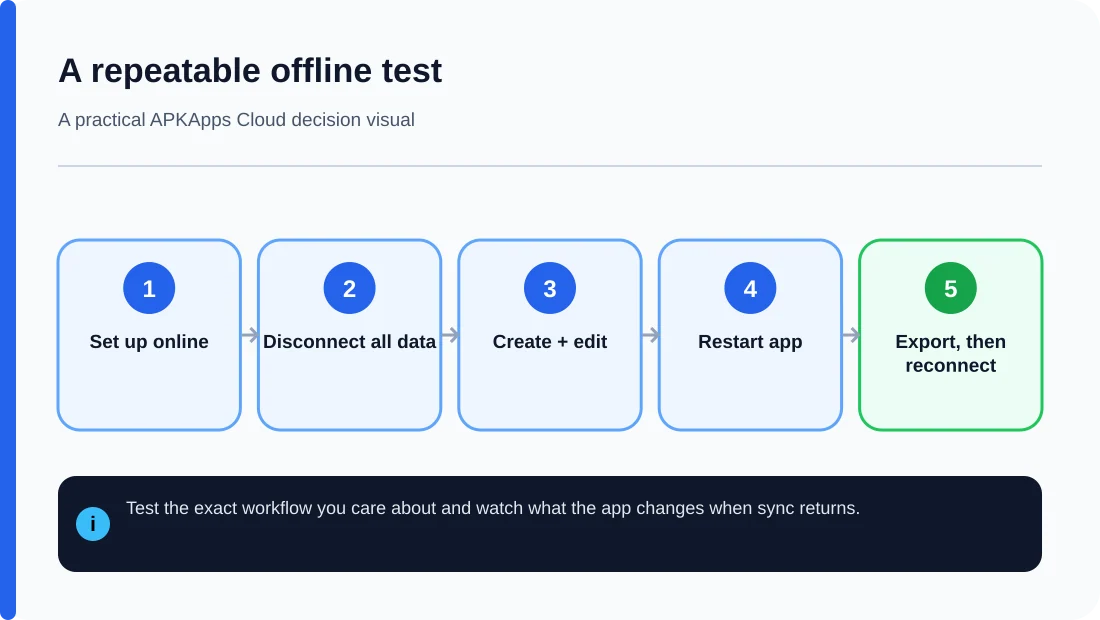
You can answer that with a repeatable test instead of relying on a store description. The method below does not require clearing app data or creating a risky second installation.
Define the workflow you actually need
Before testing, write down the actions that matter to you. For a notes app that may be opening existing notes, creating a new note, searching, attaching a file and exporting. For a scanner app it may be capturing pages, running OCR and saving a PDF. A generic “offline” label is not useful if the one feature you need still calls a server.
Complete any legitimate first-time setup online
Many apps require an initial download, account sign-in, model download or license check. That does not automatically make the app useless offline later. Complete normal setup first, then make sure the content you intend to use offline has actually been downloaded to the device.
Do not confuse a cached screen with real offline capability. If the app merely displays information that was already loaded, you still need to test whether it can create, modify, search and reopen data while disconnected.
Disconnect both Wi-Fi and mobile data
Turn off Wi-Fi and mobile data, or use airplane mode if that does not interfere with the feature being tested. Confirm the device is truly offline before opening the app. Some phones can keep Wi-Fi or Bluetooth active in airplane mode depending on settings.
Then close and reopen the app. This is more informative than leaving the already-open screen visible because it tests whether the app can start and retrieve local state without contacting its service.
Test the important actions one by one
| Action | What a strong offline result looks like | Possible limitation |
|---|---|---|
| Launch | App opens normally without a blocking connection screen | May require periodic account verification |
| Read existing data | Previously downloaded content opens | Only cached items may be available |
| Create/edit | Changes save locally | Sync conflict may appear later |
| Search | Local items are searchable | Server-side search may fail |
| Export | File is created without internet | Cloud destinations still need a connection |
| OCR/AI feature | Processing completes on device | Cloud processing may be unavailable |
Restart the app before declaring success
Create or edit something while offline, then fully close the app and reopen it while still disconnected. Confirm the new data is still present. This helps distinguish a change held only in memory from one written to local storage.
For important workflows, a device restart is an even stronger test. You do not need to clear data or force an error; the goal is simply to prove the app can recover its local state without a server.
Reconnect and watch what sync does
After the offline test, reconnect to the internet and observe how the app handles the changes. A good offline workflow should either sync cleanly or clearly explain conflicts. If one device overwrites another device’s newer work without warning, the app may technically work offline but still be a poor choice for multi-device use.
When testing a real account with valuable data, create disposable sample items rather than editing irreplaceable records.
Check export quality, not just editing
An app that lets you work offline but cannot export without contacting its service still creates a dependency. If long-term data control matters, test whether you can export to a normal file format while disconnected and whether that file can be opened outside the app.
This is especially important for notes, document scanners, password managers, journals and project tools where years of information can accumulate.
Watch for periodic online requirements
A short offline test cannot prove indefinite offline use. Subscription validation, license checks, account token expiry, security policy or remote content can require occasional connectivity. Look for the developer’s documented limits and repeat the test after a longer disconnected period if offline resilience is critical.
Local-first, cached and cloud-only are different
A local-first app keeps the authoritative working copy on the device and syncs when possible. A cached app may show old server data temporarily. A cloud-only app may stop at sign-in or fail to open content when offline. These are different designs, even if all three appear to “work” for a few minutes after losing Wi-Fi.
Sources and further reading
Android Developers: Connectivity
Android Developers: Build an offline-first app
Related APKApps Cloud guides
Before choosing a long-term app, also read what Android backup may omit and how app data behaves during phone migration.