Swiping an Android app away, force-stopping it and setting its battery mode to Restricted are not three names for the same action. They affect app processes and background work differently. That distinction matters when notifications, reminders, uploads or sync suddenly stop.
If a problem began after one of these actions, reverse or test that specific state before clearing app data or reinstalling the app.
Swiping away from Recents
Removing an app from the recent-apps screen mainly removes its task from the user interface. It may also cause the visible process to end, but it is not the same as putting the package into Android’s force-stopped state. Properly scheduled background work or system-delivered events can still behave according to Android’s background rules.
Manufacturers can add their own process-management behavior, so the exact effect can vary. Still, treating a Recents swipe as equivalent to Force stop leads to poor troubleshooting.
Force stop is a stronger state
Force stop from Settings explicitly stops the app package. If notifications or scheduled work disappeared immediately afterward, reopen the app before changing other settings. Launching it again gives the app a chance to initialize its normal work and registrations.
Force stop is useful when an app is stuck or misbehaving, but it should not be used as a daily battery-saving technique for apps that need reliable reminders or background sync.
Battery Restricted changes background opportunity
Android’s battery controls can limit how much work an app performs when it is not in the foreground. Android Developers notes that restricted apps can have background work significantly limited. This can affect delayed sync, reminders, uploads or other jobs that depend on background execution.
Restriction does not necessarily mean the app is “closed.” It means Android is applying a policy to its background activity. The app can still work when you open it while failing to complete time-sensitive work in the background.
Why notifications can fail even when permission is allowed
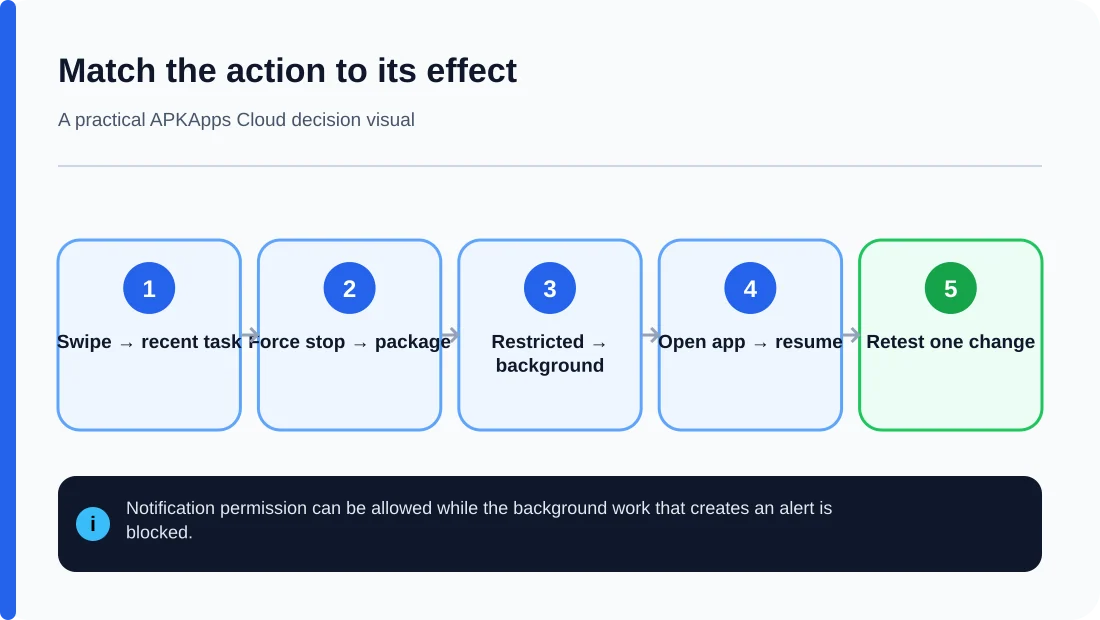
Notification permission controls whether an app is allowed to present notifications. It does not guarantee that the app successfully ran the background task that creates one. A reminder app can therefore show “Notifications allowed” while its battery or background state prevents the underlying work from happening on time.
This is why notification troubleshooting should check both the notification channel and the app’s ability to run.
Compare the three actions
| Action | What it mainly changes | Typical troubleshooting clue |
|---|---|---|
| Swipe away | Removes the recent task / visible app session | App usually relaunches normally; effect varies by app and manufacturer |
| Force stop | Explicitly stops the app package | Background behavior may not resume until you launch the app again |
| Battery Restricted | Limits background execution | Foreground use works but sync/reminders can be delayed or missing |
A safe diagnostic sequence
- Open the affected app once and confirm its own sync or reminder feature is enabled.
- Check Settings > Apps > the app > Notifications and verify the relevant category.
- Review the app’s battery/background setting and note whether it is Restricted.
- If you recently used Force stop, launch the app and retest.
- Create a disposable test reminder or sync item rather than changing valuable data.
- Only after these checks consider cache clearing or developer-recommended reset steps.
Do not set every app to Unrestricted
Changing all apps to unrestricted background use can increase battery consumption and defeats Android’s power-management design. Reserve exceptions for apps that genuinely need timely background work and that you trust.
If one app works only when every battery safeguard is disabled, check the developer’s documentation and your phone manufacturer’s settings before making broad permanent changes.
Manufacturer controls can add another layer
Samsung, Xiaomi, OnePlus and other manufacturers can add sleep lists, auto-start controls or other battery-management features on top of Android’s standard behavior. Names and defaults change across models and software versions, so verify instructions for the exact device rather than copying a menu path from another phone.
Start with standard Android controls first. Extra manufacturer settings should be investigated only when the basic notification, app and battery settings are correct.
Sources and further reading
Android Developers: Background optimization
Android Help: Control notifications
Related APKApps Cloud guides
Continue with why Android notifications stop working and how to review app permissions.