
“App not installed” is a generic result that can hide several different problems. The most useful approach is to check causes in an order that preserves your existing app data: storage first, then package completeness and compatibility, then update identity and version rules, and only after that consider removing an installed copy.
If an older version of the same app already contains important local data, do not uninstall it as your first test. A failed update can often be explained without touching that data.
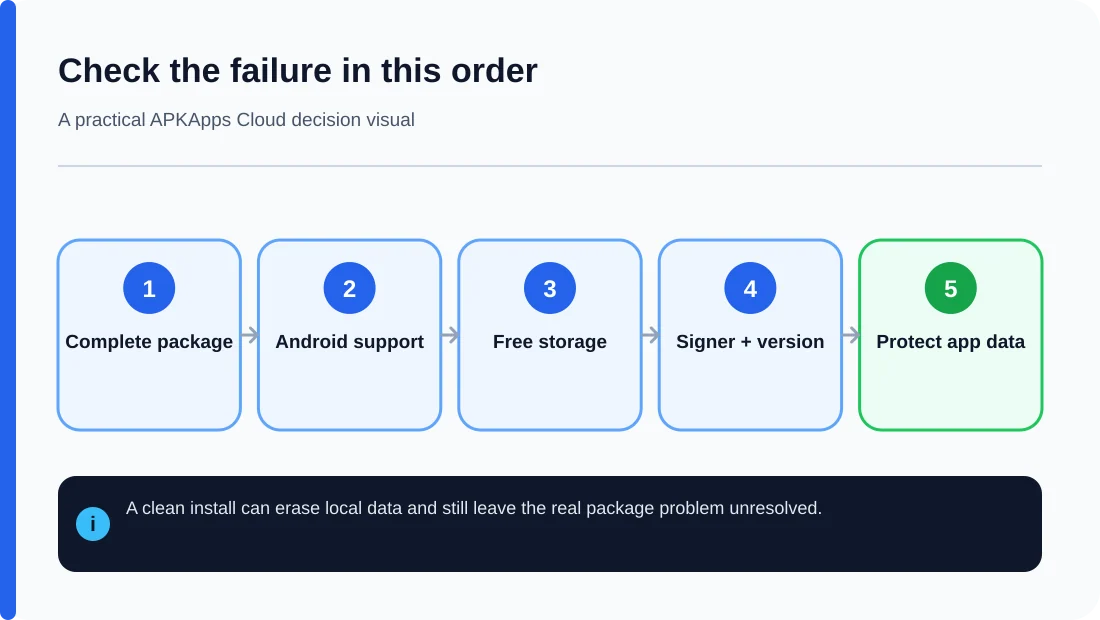
1. Check free storage before changing anything else
Android needs space not only for the downloaded file but also for extraction, installation and the app’s working files. Google Play’s troubleshooting guidance notes that low storage can stop downloads and installs. If the phone is close to full, free space using photos, videos, downloads or unused apps rather than clearing the target app’s data.
After freeing space, retry once. If the same message returns, move to the next cause instead of repeatedly deleting more files.
2. Confirm that the package is complete
Modern apps may be delivered as a base APK plus configuration splits. Google Play automatically supplies the correct set for a device, but a manually copied package may contain only one part. Android Developers states that partial sideloaded installs missing required split APKs fail on Google-certified devices and on Android 10 or higher.
If your download came from an APKS or XAPK archive, determine whether several components belong together. Installing only base.apk is not a reliable shortcut.
3. Check Android version and hardware compatibility
An app can require a newer Android API level, a particular processor architecture or a hardware feature that your device does not provide. Google Play also lets developers restrict distribution by device characteristics and region. A file that installs on one phone is therefore not proof that it should install on another.
Check your Android version under Settings and identify the device’s CPU architecture if the package is architecture-specific. ARM64 packages are common on modern phones, while older or unusual devices may use different architectures.
4. If you are updating an existing app, check the signature
Android requires APKs to be digitally signed. The signing identity is part of the secure update model. If the copy already installed on your phone was signed with one certificate and the replacement package is signed with another unrelated certificate, Android normally will not treat it as a valid update even if the icon, name and package identifier appear the same.
This often happens when an app is obtained from different stores or when a repackaged copy is used. The safest fix is to obtain the update from the same trusted distribution path as the installed copy.
5. Check whether Android sees the file as a downgrade
The version name shown to users is not what Android uses to decide which build is newer. Android uses the internal versionCode. A file labelled “v10” can still have a lower version code than an installed build labelled “9.8,” in which case Android can reject it as a downgrade.
Do not assume a larger marketing number means a valid update. If the package source does not expose trustworthy version information, avoid replacing a working installation just to test it.
6. Look for package conflicts or remnants
Work profiles, cloned-app features, Private Space and manufacturer dual-app systems can create another instance of an app. In some cases, an apparently missing app still exists in another profile or user space. Check Settings > Apps and any secondary profile before concluding that the package is absent.
Do not use aggressive “cleaner” tools to remove package data unless you know what they will delete. They can make recovery harder without solving a signing or compatibility problem.
7. Stop when the package source itself is uncertain
If the APK came from an unknown mirror, has no clear developer provenance, asks you to disable security scanning, or requires unrelated sensitive permissions, the installation failure may be protecting you from a bad decision. A successful install is not the goal if the package cannot be trusted.
Data-loss warning before uninstalling
Uninstalling may remove local databases, downloaded files stored in app-private locations, settings and authentication state. Cloud-synced information may return later, but local-only data may not. Before uninstalling, check whether the app has export, sync or backup features and verify that the backup actually contains what you need.
Sources and further reading
Android Developers: Android App Bundles and split APKs
Android Developers: App signing
Android Developers: App versioning
Google Play Help: Basic download and install troubleshooting
Related APKApps Cloud guides
Next, check signature mismatch, version name vs version code, and APK, APKS and split-package formats.